IPTV Not Working? How to Fix It Step by Step
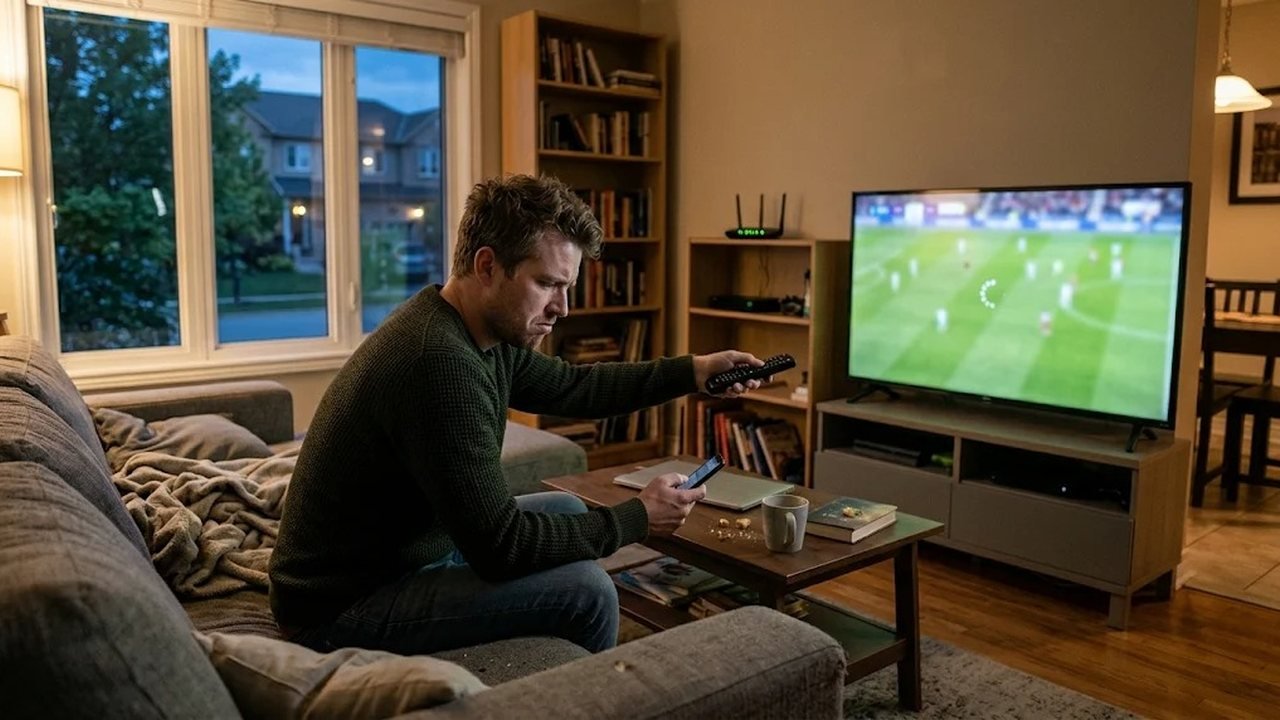
Few things are more frustrating than finding your IPTV not working just as the puck drops on a Saturday night. However, unplugging everything at once rarely helps. A calm routine fixes most problems quickly, so this guide walks through each check in order. We start with the simplest fixes and finish with the point where support should take over.
IPTV not working? Start with one question
Is it one channel or all of them? That single answer tells you where the fault lives. If only one channel freezes while others play fine, the problem is almost always that stream, not your home setup. In that case, try a different channel in the same category, then come back later. Channels sometimes go offline briefly while a source is updated.
If every channel fails, however, the cause is usually closer to home. It could be your device, your app, your internet or your login. The steps below cover each of those in turn.
Restart in the right order
Order matters here, because each piece depends on the one before it. First, close the player app completely rather than just pressing Home. On Android TV and Fire TV, you can force stop it from the app settings. Next, restart the device itself by unplugging it for thirty seconds. After that, power-cycle your modem and router. Unplug both, wait a minute, then plug in the modem first and the router second.
Give the network a few minutes to reconnect before you open the app again. Many viewers skip this wait and assume the restart failed. In reality, the router simply had not finished booting. Most cases of IPTV not working on a single TV clear up after a proper restart like this one.
Check your speed and connection
Next, run a speed test on the device you watch on. Your phone sits in a different spot, so its result can mislead you. HD channels need a steady connection, and 4K needs considerably more headroom. Stability matters as much as raw speed, so watch for big swings between tests. If the result is far below what you pay for, the issue sits with your internet rather than the stream.
Wired versus Wi-Fi
Wi-Fi is convenient, but it struggles through concrete walls, basement floors and crowded condo towers. Where possible, connect your TV box with an Ethernet cable and test again. If a cable is not practical, switch to the 5 GHz band or move the router closer. A mesh system also helps in larger homes with several storeys.
Clear the app cache when IPTV is not working
Player apps store guide data, logos and temporary files. Over time, that cache can become corrupted and cause blank screens or endless loading. On Android-based devices, open Settings, find the app, then choose Clear cache. Avoid Clear data unless support suggests it, because that also removes your saved login. On Smart TVs, uninstalling and reinstalling the app has a similar effect.
Check your login, expiry and connections
Then confirm that your plan is still active. MyTVOnline plans are one-time payments with no auto-renewal, so a login simply stops when its period ends. You can find the expiry date in your welcome message on WhatsApp or in the account screen of your player. Also, make sure the username, password and server address are typed exactly, since one wrong character breaks the connection.
Too many connections is another common cause. Each plan covers the number of devices chosen at checkout, and 2 or 3 screens are available. If an extra screen starts a stream, one of the others will usually drop. So if a relative is watching in another room, that may explain the sudden cut-off.
Change your DNS if IPTV is not working
Default DNS servers can be slow to find a server. The Domain Name System turns web addresses into numbers, and your internet provider runs its own by default. Switching to a reputable public DNS service can fix stubborn loading errors. On most routers, you change it once in the admin page, and every device benefits. Alternatively, set it on the TV box under network settings. Write down the original values first, so you can switch back if nothing changes.
EPG missing or IPTV channels not working?
These two problems look similar, but they have different fixes. If channels play yet the program guide is empty, the stream is fine and only the guide data failed. In that case, refresh the EPG from the app settings, or wait for the next automatic update. The 7-day guide can take a few minutes to load on slower devices.
If the guide shows listings but nothing plays, the problem is the stream itself. Go back through the restart, speed and login checks above. Our IPTV installation guide also shows the correct settings for each player and device.
Buffering at peak hours
Evening buffering is often a local network issue. Between dinner and bedtime, most of your building or neighbourhood is online at once. Meanwhile, someone at home may be downloading a game update or backing up photos. To ease the load, pause large downloads during big games and limit other streams. Lowering the picture from 4K to HD also keeps playback smooth when the line is busy.
If buffering only hits one device, compare it with another screen in the same room. A sluggish older stick may simply lack the memory for HD channels. Our post on choosing an IPTV box in Canada explains what to look for in newer hardware.
When to message support if your IPTV is not working
If you have worked through every step and the problem remains, contact us on WhatsApp. Support is free, and most issues are sorted in a single conversation. To speed things up, send the following details.
- A screenshot or short video of the error or frozen screen.
- The device you use, such as a Fire TV Stick, Samsung TV or Android box.
- The app name and its version number.
- Which channels fail and at what time of day.
- What you have already tried from this list.
You can also reach us through the contact page. Please note our refund policy before you ask for money back. Refunds are available within 24 hours of payment, but only for a genuine service fault that support cannot fix. Home Wi-Fi limits, a slow device or one channel offline for a short while are not service faults, although we will still help you with them.
Get your IPTV subscription from MyTVOnline and keep troubleshooting simple, with real people on WhatsApp when you need them. Compare plans on the IPTV prices in Canada page, starting at US$12.99 for one month. For more fixes and setup tips, browse our TV streaming guides or start from the MyTVOnline homepage. Should your IPTV not working problem ever return, this checklist will get you back to the game fast.
Frequently asked questions
Why does only one channel freeze while the others play?
That usually means the problem is with that single stream, not your home setup. Try another channel in the same category and come back to it a little later.
In what order should I restart my equipment?
Close the player app first, then restart the TV device. After that, power-cycle the modem and router, plugging the modem in before the router.
What should I send to support on WhatsApp?
Send a screenshot or short video of the error, your device, the app name and version, which channels fail and what you have already tried.
Can I get a refund if my stream keeps buffering?
Refunds are available within 24 hours of payment, but only for a genuine service fault that support cannot fix. Slow home Wi-Fi or an older device is not a service fault, although support will still help.